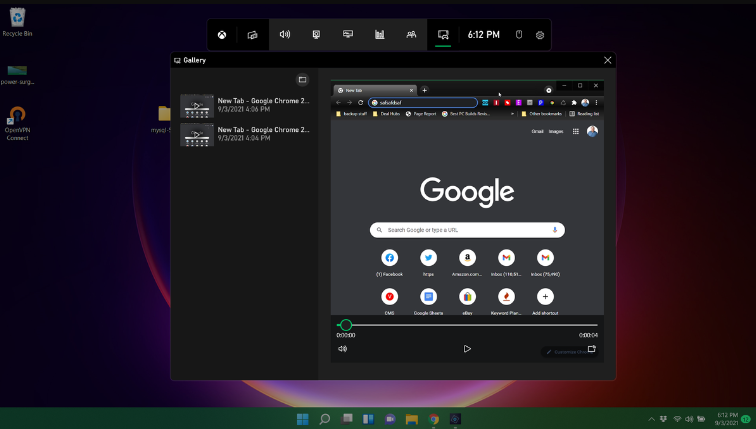
Screen recording has become an essential tool for many Windows users, whether for creating tutorials, capturing gameplay, or documenting software issues. However, encountering problems like screen recording not working can be frustrating. This guide aims to address common issues and provide troubleshooting steps to help you if your screen record doesn’t work.
Understanding Screen Recording
Before diving into troubleshooting, let’s briefly understand how screen recording works. Screen recording software captures everything displayed on your screen, including movements, audio, and sometimes webcam feeds. It’s a powerful tool for creating dynamic content or documenting processes.
Common Reasons Why Screen Recording May Not Work
Several factors can contribute to screen recording issues on Windows computers. Here are some common reasons:
- Software Compatibility: Not all screen recording software works seamlessly on every Windows version or with all hardware configurations.
- Permissions: Screen recording applications may require specific permissions to access your screen, audio, or webcam. Without these permissions, the software may not function correctly.
- Hardware Limitations: Insufficient hardware resources, such as low RAM or an outdated graphics card, can lead to performance issues during screen recording.
- Driver Issues: Outdated or incompatible graphics and audio drivers can cause conflicts and prevent smooth screen recording.
- Security Software: Antivirus programs or security settings may block screen recording software, considering it a potential threat.
Troubleshooting Steps
Now, let’s explore steps to troubleshoot and fix screen recording issues on your Windows system:
Check System Requirements
Ensure that your computer meets the minimum requirements for the screen recording software you’re using. Verify compatibility with your Windows version and hardware specifications.
Update Software and Drivers
- Screen Recording Software: Update to the latest version of your chosen screen recording application. Developers often release updates to improve compatibility and fix bugs.
- Graphics and Audio Drivers: Update your graphics card and audio drivers to the latest versions compatible with your Windows version.
Verify Permissions
Check and adjust the permissions for your screen recording software:
- Screen and Audio Access: Grant necessary permissions for the software to access your screen and audio inputs.
- Webcam Access: If your recording includes webcam footage, ensure the software has permission to access your webcam.
Disable Security Software Temporarily
Temporarily disable antivirus or firewall software and then attempt the screen recording again. Remember to re-enable these features once you’ve finished troubleshooting to maintain system security.
Close Background Applications
Close unnecessary applications running in the background to free up system resources. This can improve the performance of your screen recording software.
Adjust Recording Settings
Optimize recording settings within your screen recording software:
- Resolution and Frame Rate: Lowering the resolution or frame rate can reduce the strain on your system during recording.
- Audio Settings: Adjust audio input sources and volume levels as needed.
Restart Your Computer
A simple restart can resolve temporary system glitches and refresh system processes, potentially resolving screen recording issues.
Test on Another User Account
Create a new user account on your Windows system and test the screen recording software there. This can help determine if the issue is specific to your user profile.
Check for Software Conflicts
Certain software applications or background processes can conflict with screen recording software. Identify and close or uninstall any such conflicting programs.
Conclusion
Screen recording issues on Windows can be resolved through systematic troubleshooting. By following the steps outlined in this guide, you can identify the root cause of the problem and implement solutions to ensure smooth and successful screen recordings. Remember to keep your software and drivers updated regularly and maintain system security while troubleshooting.
Whether you’re a content creator, educator, or tech enthusiast, resolving screen recording issues enhances your productivity and creativity, allowing you to focus on creating engaging content without interruptions.